
Clients
Most chat tools start every conversation with the same awkward question: "Hi, who am I speaking with?" With Ruby Relay, you can skip it. If you pass your logged-in user's details (name, email, customer ID) to the widget, your team in Slack sees exactly who they're talking to the moment the chat opens.
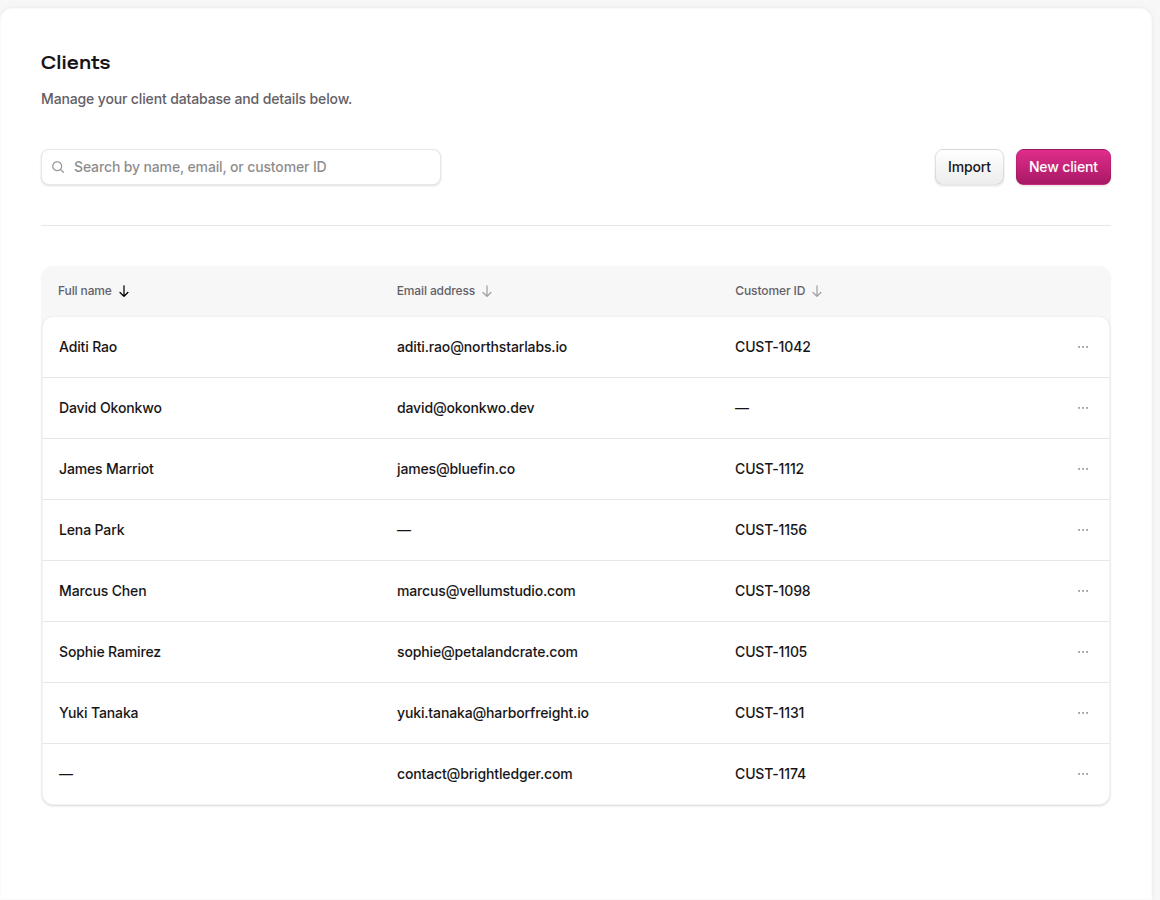
Want a roster on file too? The Clients page is where that database lives. Add people one at a time, paste in a CSV from your CRM, or upload your full customer list from a spreadsheet. Then, even when the widget only passes a customer ID, Ruby Relay matches it to the right person on its own.
Why clients
A client record is a small but powerful thing. It pairs a customer identifier (an email, a customer ID, or both) with a friendly name your team will recognize. When a visitor lands on your site and the widget identifies them, Ruby Relay looks them up and stamps the Slack thread with what you know.
The payoff: no more "let me pull up your account." Your team opens the thread already knowing who's on the other end, what their customer ID is, and where to find them in your other tools. Faster replies, fewer misrouted threads, and a much warmer first impression.
Add a client
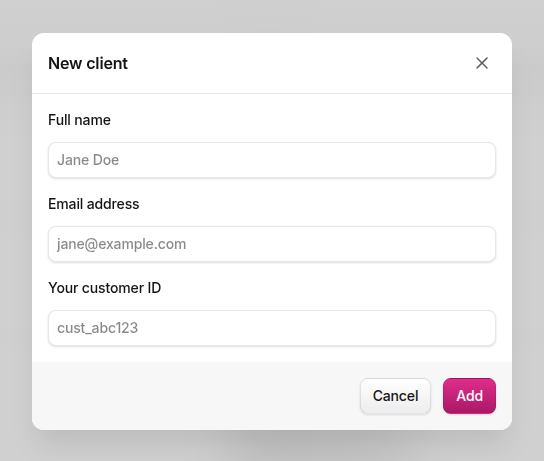
Open Clients from your portal sidebar and click New client. You'll get a small form with three fields:
- Full name — Optional, but worth filling in. This is the name your team will see in Slack.
- Email address — Used for matching when your widget identifies the visitor by email.
- Your customer ID — The ID you use in your own system. Use this when you'd rather not pass an email through the widget.
At least one of email or customer ID is required, since one of them is how we'll find this person later. If you try to save a duplicate of either field, the form flags it inline before submit so you don't end up with two records pointing at the same person.
Bulk import
If you already have a customer list somewhere else, don't retype it. Click Import, drop a CSV or Excel spreadsheet, and Ruby Relay will parse it on the spot.
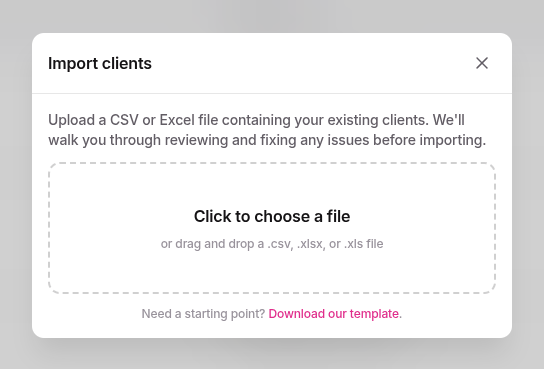
We auto-detect column headers, so files exported from your CRM, your billing system, or a quick spreadsheet pull usually work without any renaming. Common variations like email address, Customer ID, or Full Name are all recognized.
Once the file lands, you'll see every row in a preview table with the original column names across the top. Underneath each header is a small dropdown where you tell us what that column actually is — Name, Email, Customer ID, or Ignore if it's a column we should leave behind. Anything we already auto-mapped is prefilled, so you only step in where we guessed wrong.
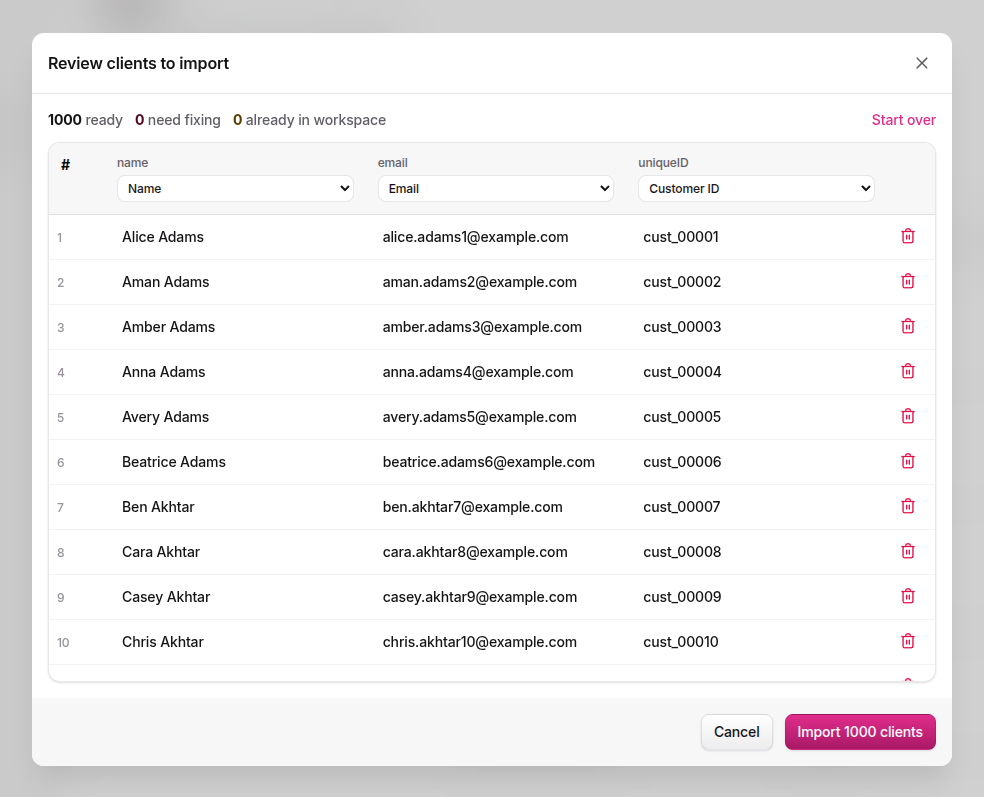
Edit individual cells inline if a row needs a quick fix. Hit Start over if you grabbed the wrong file. Once the mapping looks right and at least one of Email or Customer ID is claimed, the import button at the bottom unlocks.
A few things to know before you upload:
- Up to 1,000 rows per file. Bigger lists? Split them and run a few imports back to back.
- Each row needs an email or a customer ID. Rows missing both are flagged in the preview and skipped on import.
- If a row matches a client you already have, we keep your existing record rather than creating a duplicate. You'll see those marked as "exists" in the result summary.
- Per-row failures don't sink the whole import. Successful rows go in, problem rows are reported back with the reason they were rejected, and you can fix and re-upload just those.
Need a starting point? Grab our template CSV and fill in the columns you have.
Clients can add themselves
You don't strictly have to seed the Clients page upfront. If your widget install passes an email or customer ID for a visitor and we don't yet have a record matching it, we create one on the fly the first time they start a chat. The very first Slack thread carries the enrichment block, and every conversation after that points at the same client record.
When new info trickles in later, we fill in the gaps. Pass an email for a visitor we previously knew only by customer ID, and we'll attach it to the existing record rather than spawning a duplicate. Same the other way around.
One important exception: we never overwrite a customer ID. If the widget reports a different customer ID for someone we already know, we treat that as a stale or misconfigured embed and ignore it. Customer IDs are meant to be stable, so a mismatch is far more likely to be a deploy mistake than a real change, and we'd rather not let one bad rollout quietly scramble your records.
Two things this means in practice:
- Your Clients list grows as visitors do, no setup step required. The page is still there for editing names, fixing typos, or removing records, but you don't have to use it as a launch checklist.
- Live-preview traffic from your own portal is excluded, so testing the widget against the preview pane doesn't litter your real client database with fake records.
Search, edit, remove
The search bar at the top of the page scans every field at once: name, email, and customer ID. Start typing, and the table narrows in real time.
To change a record, click the menu icon (the three dots) on any row and choose Edit. The same form you used to create the client opens up, prefilled. Save changes and the new details flow through to any future conversation that matches.
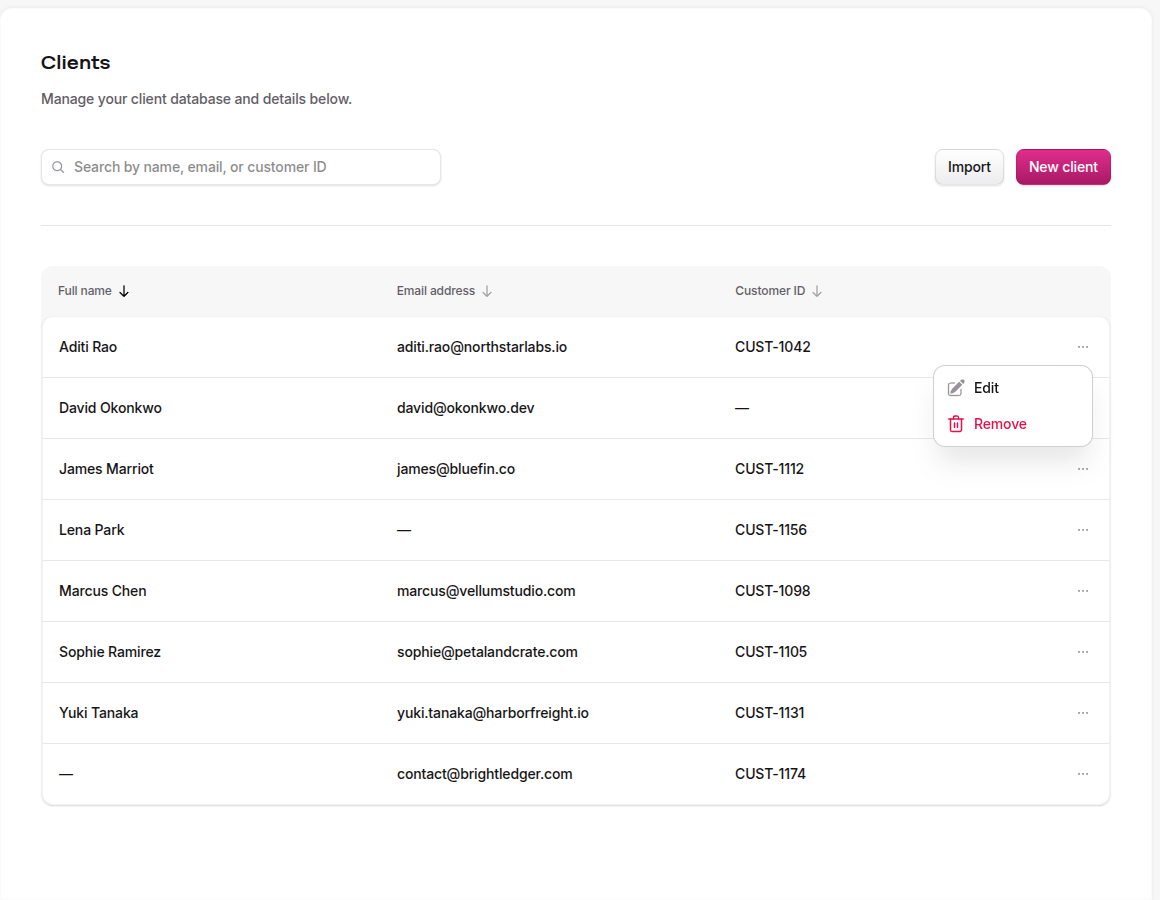
To delete a record, pick Remove from the same menu. We'll ask you to confirm, since removal is permanent and can't be undone. New conversations from that person stop being enriched immediately, but past conversations keep the metadata they were stamped with at the time. (More on that below.)
How clients show up in Slack
When a visitor opens the widget, Ruby Relay checks whether your install passed an email or a customer ID for that person. If it did, we look for a matching client record. If we find one, the very first message we drop into Slack carries a small metadata block at the top:
- Name — what you stored on the client
- Email — what you stored, or what the widget passed
- UserID — the customer ID
Your team sees that block before they read a single word of the conversation, so they can skim, jump to your CRM, or reply with the right context already loaded. If you're routing across channels with Conversation Flows, this metadata travels with the thread. And if you have Saved Conversations turned on, it gets archived alongside the transcript.
Heads up: actually passing the email or ID from your site is a widget-install detail. See Installing the Widget for the snippet that hands those values to Ruby Relay when the visitor loads the page.
Matching and privacy
Matching is straightforward, but a few specifics are worth knowing:
- Email and customer ID matches are case-insensitive and ignore surrounding whitespace.
JANE@acme.comandjane@acme.comresolve to the same record. - A visitor matches on either field. If the widget passes an email and we have a record with the same email, we match. Same for customer ID. You don't have to provide both.
- Anonymous visitors (the widget didn't pass an email or customer ID at all) skip the enrichment block. The conversation still routes normally; there's just nothing for us to attach a name to.
- Removing a client only affects new conversations. Saved Conversations are snapshots, so any threads already archived keep the name, email, and customer ID they had at the time. That's deliberate, the archive should reflect what was true then, not what your database looks like today.
- Client records live in your private storage. Only members of your organization can list, edit, or delete them.
Questions about the data we hold or how matching behaves at scale? Email support@rubyrelay.com and we'll sort you out.