
Troubleshooting
Take a breath. Whatever's broken, it's almost certainly a quick fix. We've catalogued the most common issues below, starting with the ones we see most often.
Widget not appearing
Check your Content Security Policy (CSP)
If your site sends a Content-Security-Policy header (or meta tag), the browser will block any resource not explicitly allowed. You'll see a CSP violation in DevTools. Add the sources below to the matching directives in your policy.
Required directives
| Directive | Add | Why |
|---|---|---|
script-src | https://cdn.rubyrelay.com | Loads the widget script |
style-src | 'unsafe-inline' | Widget injects CSS for theming |
connect-src | https://api.rubyrelay.com wss://msg.rubyrelay.com | REST API and WebSocket connections |
img-src | https://*.s3.amazonaws.com | Inline images shared from Slack and screenshots |
Example
Before (common starting point):
Content-Security-Policy:default-src 'self';script-src 'self';style-src 'self';object-src 'none';
After (with Ruby Relay sources added):
Content-Security-Policy:default-src 'self';script-src 'self' https://cdn.rubyrelay.com;style-src 'self' 'unsafe-inline';connect-src 'self' https://api.rubyrelay.com wss://msg.rubyrelay.com;img-src 'self' https://*.s3.amazonaws.com;object-src 'none';
Heads up on script-src console warnings: React 19's resource preloading inserts inline <script> tags, which will generate benign CSP violation reports if your policy doesn't allow inline scripts. These don't affect the widget. Do not add 'unsafe-inline' to script-src to silence them, that weakens your policy for no benefit. The violations are harmless noise from the framework, not from Ruby Relay.
Verify script placement
The widget script needs to load before you call window.RubyRelayWidget.init(). If you're using the CDN method, make sure the <script> tag comes first. If you're using the React package, this isn't an issue since the component handles loading order.
Enable debug mode
Add debug: true to your init call to get verbose console output:
window.RubyRelayWidget.init({apiKey: "YOUR_API_KEY",debug: true,});
This logs every lifecycle event (script loaded, WebSocket connected, session created, etc.) to the browser console. Very handy for pinpointing where things go sideways.
Check for JavaScript errors
Open DevTools (F12), go to the Console tab, and look for red errors. Common ones:
RubyRelayWidget is not defined- The script hasn't loaded yet. Check your script tag URL and make sure it's not being blocked by an ad blocker.Invalid apiKey- Double-check the key from your dashboard's Widget Configuration Embed Code tab. Copy-paste it fresh, the problem is usually a stray space.
The launcher never appears (no enabled channel)
If your script loads cleanly but no chat bubble shows up, your workspace may have no enabled channel to route to yet. The API key is minted when you install Ruby Relay, before the bot has joined any channel, so a brand-new workspace can be in this state. When there's nowhere to route, the widget deliberately hides its launcher and re-checks every few minutes. Connect or enable a channel on the Workspaces page and the launcher appears on its own, no redeploy needed.
Messages not delivering
Check Slack permissions
If the Ruby Relay bot was removed from the connected channel (it happens, especially during workspace cleanup), messages have nowhere to go. Re-add the bot to the channel, or disconnect and reconnect from the dashboard.
Verify channel selection
Go to Workspaces in your dashboard and confirm a channel is actually selected. If it shows "No channel connected," that's your answer.
Messages landing in the wrong channel
Channel routing happens server-side, so a misrouted conversation usually means the embed isn't pointing where you think. Ruby Relay uses the first of these that applies: the embed's channel alias, then your workspace's default channel, then the oldest enabled channel. Confirm the channel value in your embed matches the right channel's alias on the Workspaces page, a rotated, disabled, or mistyped alias falls back silently to the default. Or re-point your default channel. See Managing Channels for the full routing ladder.
Thread replies not reaching visitors
Your team needs to reply in the Slack thread, not as a standalone channel message. Only threaded replies get relayed back to the widget. This is by design, so random channel chatter doesn't leak into visitor conversations.
Styling conflicts
z-index issues
The widget uses z-index: 2147483647 (the max) by default. If something on your site is still covering it, that element has the same z-index and appears later in the DOM. You can fix the competing element's z-index, or adjust the widget position to avoid the conflict.
CSS specificity
The widget renders inside a Shadow DOM, so your site's CSS shouldn't affect it. If you're seeing style bleed, it's likely coming from global styles that target very broad selectors like * { ... } or div { ... }. The Shadow DOM boundary handles most of this, but some inherited properties (font, color) can still leak through.
Widget overlapping other elements
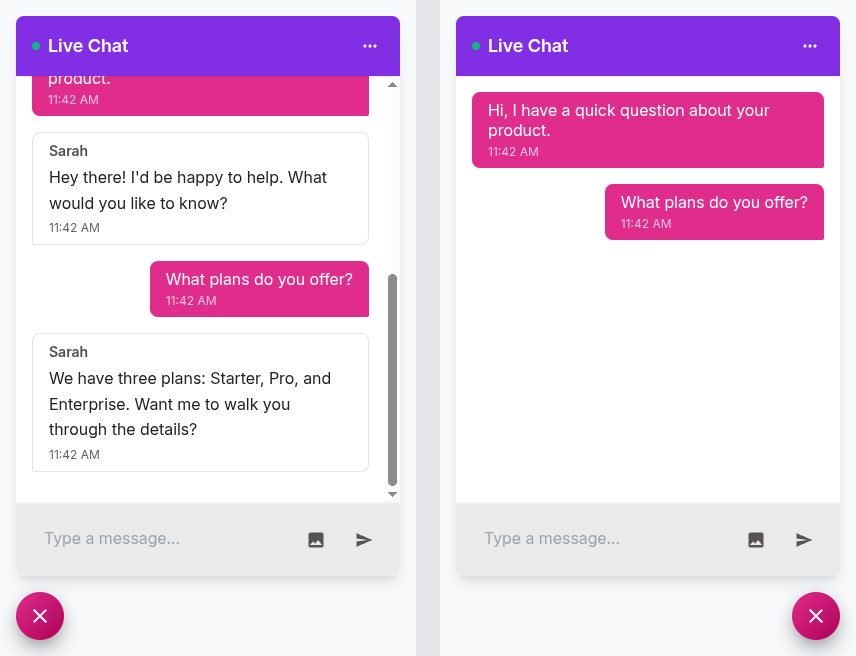
If the chat bubble overlaps a cookie banner or FAB button, try switching the widget position. Available positions: bottom-right, bottom-left, top-right, and top-left. See Customizing Your Widget.
Session behavior
Sessions timeout after 90 minutes
If a visitor is inactive for 90 minutes, the session expires and a new one starts on their next message. This creates a new Slack thread. It's intentional, so your team isn't replying to a conversation from three hours ago.
Sessions are tab-specific
Each browser tab gets its own session. If a visitor opens your site in two tabs, they'll have two separate conversations. This avoids message crossover and keeps things clean.
Chat history
Visitors see their chat history for the duration of their session. Once the session ends (tab close or 90-minute timeout), the widget resets. Your team still has the full history in Slack.
Can't install or connect Slack
If authorizing Ruby Relay doesn't stick, or a teammate kicked off setup but it never finished, your workspace most likely requires a Slack Workspace Owner to approve new apps. A Workspace Admin can start the install, but it stays pending until an Owner approves it. See Connecting Slack for who approves it and where they find the request.
Contact support
If you've tried everything above and things still aren't working, we want to hear about it:
- Email: support@rubyrelay.com
- Include: your API key, browser/OS, a screenshot of any console errors, and a description of what you expected vs. what happened.
We respond within one business day, usually much faster. We're a small team that actually reads every support email, not a ticket queue that sends you an auto-reply and forgets about you.