
Ongoing Conversations
By default, a conversation closes after 90 minutes of inactivity. If the visitor wanders off and comes back later, they start a brand-new thread, and the back-and-forth you'd built up is gone. That's fine for one-off questions, but it's a pain for anything that plays out over hours or days: an order that's still shipping, a bug you're chasing down, a client you go back and forth with all week.
Turn on Ongoing Conversations and a conversation stays open until you decide it's done. The visitor can step away for lunch (or a week) and pick up right where they left off, same thread, same context, no re-explaining.
Ongoing Conversations builds directly on Saved Conversations, so it's available on the Growth and Scale plans, and you'll need Save Conversations switched on first. It's an organization-wide setting, off by default, and it's one toggle to turn on or off.
Turn it on
Once Save Conversations is on, open Conversations from your portal sidebar. A gear icon sits in the page header. Click it and flip Ongoing Conversations.
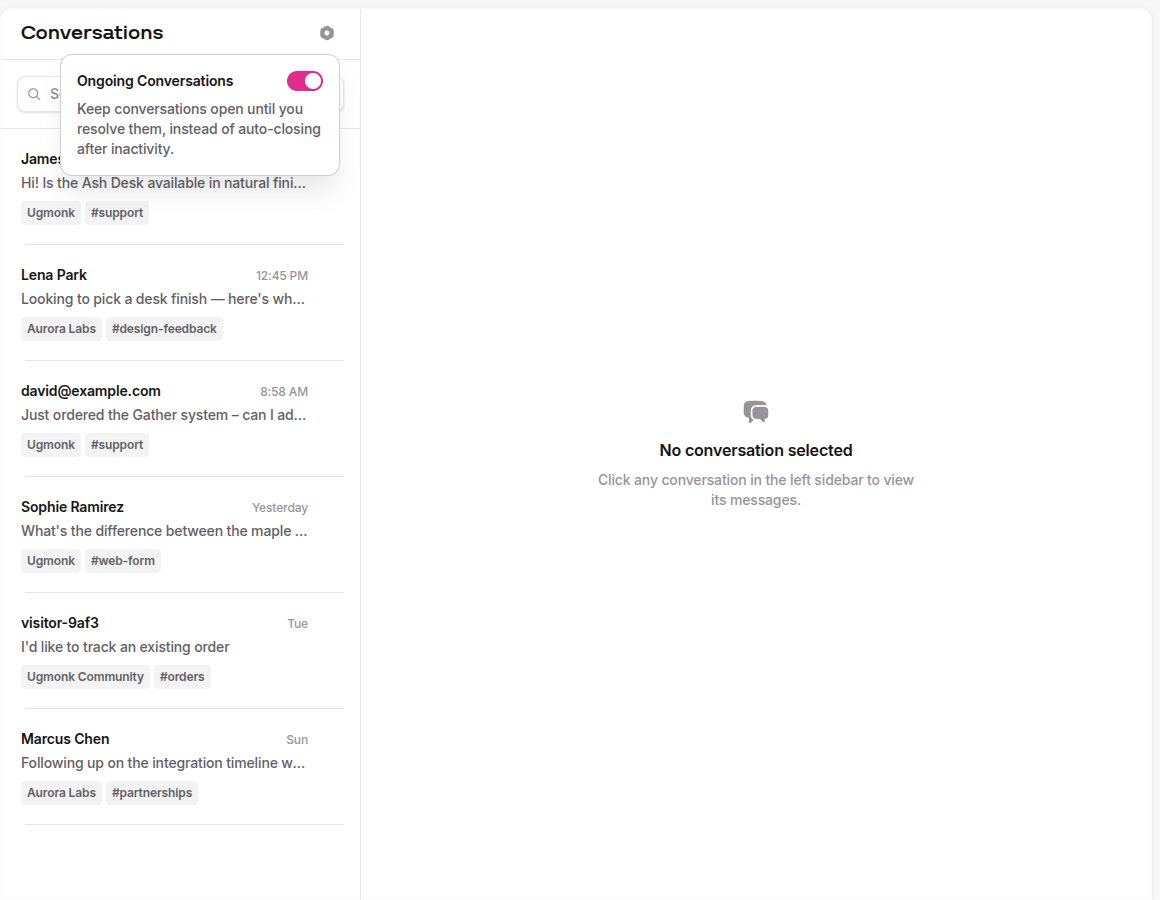
It applies to your whole organization, every workspace and every channel. The gear only appears when Save Conversations is enabled, because Ongoing Conversations has nothing to keep open if conversations aren't being saved in the first place.
How long they stay open
Normally a thread times out after 90 minutes and the visitor's next message starts a fresh one. With Ongoing Conversations on, a thread stays open until one of three things happens:
- You resolve it (see below).
- It goes 14 days without any activity.
- It reaches 90 days total, the absolute ceiling, no matter how active it's been.
The 14-day idle window resets every time anyone, you or the visitor, sends a message, so an active conversation never ages out. The 90-day lifetime cap does not reset; it's a hard stop so nothing lives forever (and so any images shared in the chat stay within our 90-day storage window). When a conversation finally closes, it's archived just like any other and shows up in your saved conversations.
Resolving a conversation
You decide when a conversation is finished. Three ways, all from Slack:
- Reply with
!!closeor!!resolveanywhere in a thread message. - React to the thread with ✅ (
:white_check_mark:).
When you resolve with a command, Ruby Relay adds a ✅ to the thread for you, so anyone scanning the channel can see at a glance that it's handled. In Ongoing Conversations mode !!close marks the conversation resolved rather than just ending a session, the difference being that the transcript is archived and the ✅ goes on the thread.
Resolved vs. timed out
Two reactions tell you how a conversation ended without your having to open it:
- ✅
white_check_mark— a human resolved it, either with a command or by adding the reaction. - ⏰
alarm_clock— it closed on its own, either 14 days idle or the 90-day cap. Ruby Relay adds this one.
So a glance down the channel tells you what your team actually wrapped up versus what quietly aged out.
Before a conversation closes
We don't let a conversation vanish without a heads-up in the thread:
- About a day before the 14-day idle close, we post: "This conversation will automatically close in about a day due to inactivity. Reply to keep it open, or react with ✅ to resolve it." Replying resets the clock.
- About five days before the 90-day lifetime cap, we post: "This conversation is approaching the 90-day open limit and will be automatically archived in a few days. React with ✅ to resolve it." Note the difference: replying does not push out the lifetime cap, only resolving clears it, so treat this one as a nudge to wrap up.
See what's open
Lost track of what still needs you? Type /rubyrelay open in any channel. Ruby Relay fires back an ephemeral message (only you see it) listing your open conversations, each with a link and how long it's been open. It's the fastest way to triage what's waiting on a reply or a resolve. The subcommand only does anything while Ongoing Conversations is on, since that's the only time you have a backlog of open conversations.
Turn it off
Flip the same gear toggle off and new conversations go back to the 90-minute timeout. Anything already open keeps its Ongoing behavior until it resolves or times out on its own.
Because Ongoing Conversations rides on top of Save Conversations, switching Save Conversations off in Billing turns Ongoing Conversations off with it, it can't keep conversations open if it isn't saving them.
Plan availability
Ongoing Conversations is included on the Growth and Scale plans, the same plans that include Saved Conversations. There's no extra charge, it's a mode you switch on, not an add-on. You just need Save Conversations enabled first.
Questions? Email support@rubyrelay.com and we'll help you get it dialed in.